
GROUPBY Function in Excel
Quick answer
The GROUPBY function in Excel summarises a table with a single formula. You tell it what to group by (like supplier), which numbers to crunch (like invoice totals) and how to crunch them (SUM, AVERAGE, COUNT and so on). It spills a sorted summary with a grand total, and it updates the moment your data changes. Think of it as a PivotTable you never have to refresh.
GROUPBY(row_fields, values, function, [field_headers], [total_depth], [sort_order], [filter_array], [field_relationship])Works in: Excel 365 (Windows and Mac) and Excel for the web. Not available in Excel 2024, 2021, 2019 or 2016. Google Sheets doesn’t have GROUPBY; use a pivot table or the QUERY function with GROUP BY instead.
Syntax
GROUPBY(row_fields, values, function, [field_headers], [total_depth], [sort_order], [filter_array], [field_relationship])| Argument | Required? | What it does |
|---|---|---|
row_fields | Yes | The column (or columns) you want to group by, e.g. the Supplier column. Each unique value becomes a row in the result. |
values | Yes | The column (or columns) of numbers to aggregate, e.g. the Total column. Must have the same number of rows as row_fields. |
function | Yes | How to aggregate the values: SUM, AVERAGE, COUNT, COUNTA, MAX, MIN, PERCENTOF, or your own LAMBDA. Type the name with no brackets. |
field_headers | No | Whether your ranges include headers and whether to show them: 0 = no headers, 1 = has headers but hide them, 2 = no headers but generate them, 3 = has headers and show them. Default: Excel guesses from your data. |
total_depth | No | 0 = no totals, 1 = grand total, 2 = grand total and subtotals, -1 or -2 = the same with totals at the top. Default: grand total (plus subtotals if you group by 2+ columns). |
sort_order | No | The column number to sort by, counting across row_fields first, then values. Make it negative for descending. Default: sorted A to Z by the first grouping column. |
filter_array | No | A TRUE/FALSE test the same height as your data. Only rows that return TRUE are included. Default: every row is included. |
field_relationship | No | 0 = hierarchy (later grouping columns sort within earlier ones, subtotals allowed), 1 = table (each column sorts on its own, no subtotals). Default: 0. |
How GROUPBY works
GROUPBY does three jobs in one go. First it finds every unique value in row_fields, the same list UNIQUE would give you. Then, for each of those values, it collects the matching numbers from values and runs your function over them. Finally it sorts the result and adds a total row.
So =GROUPBY(Supplier, Total, SUM) reads as: “for each supplier, add up the totals”. That’s the same answer a PivotTable gives you, or a UNIQUE list with a SUMIFS next to it, but in one formula that grows and shrinks as rows are added.
Because the result spills, keep the cells below and to the right of the formula empty. And because it’s a formula, you can feed it into other formulas, which a PivotTable can’t do.
Examples
These examples use the Invoices sheet from the Bluegum Café workbook, with ten supplier bills from July to October 2025 in A1:G11 (headers in row 1). Results go from column I so there’s room for them to spill.
| Invoice No | Date | Supplier | Category | Amount ex GST | GST | Total |
|---|---|---|---|---|---|---|
| INV-1001 | 03/07/2025 | Ridgeline Roasters | Coffee beans | $480.00 | $48.00 | $528.00 |
| INV-1002 | 04/07/2025 | Coastal Dairy Co | Milk | $215.50 | $21.55 | $237.05 |
| INV-1003 | 07/07/2025 | Otway Bakehouse | Bread | $312.40 | $31.24 | $343.64 |
| INV-1004 | 10/07/2025 | Ridgeline Roasters | Coffee beans | $480.00 | $48.00 | $528.00 |
| INV-1005 | 11/07/2025 | Coastal Dairy Co | Milk | $198.20 | $19.82 | $218.02 |
| INV-1006 | 01/08/2025 | Otway Bakehouse | Bread | $298.60 | $29.86 | $328.46 |
| INV-1007 | 15/08/2025 | Ridgeline Roasters | Coffee beans | $520.00 | $52.00 | $572.00 |
| INV-1008 | 12/09/2025 | Coastal Dairy Co | Milk | $224.80 | $22.48 | $247.28 |
| INV-1009 | 06/10/2025 | Ridgeline Roasters | Coffee beans | $520.00 | $52.00 | $572.00 |
| INV-1010 | 14/10/2025 | Otway Bakehouse | Bread | $305.10 | $30.51 | $335.61 |
Basic: Total spend by supplier
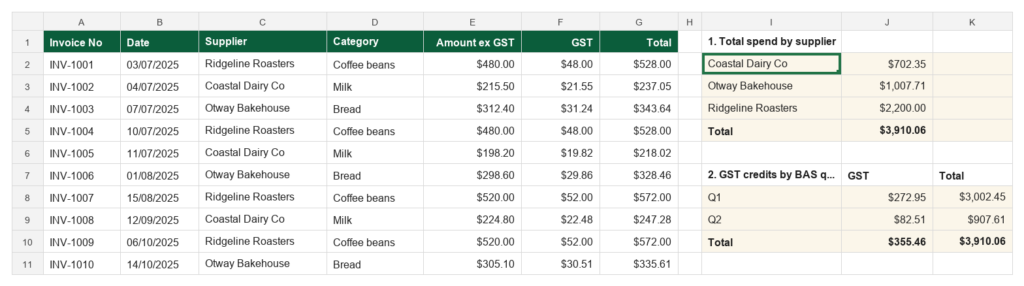
On the Invoices sheet, click I2 and enter the formula. It groups the Supplier column (C) and adds up the Total column (G).
=GROUPBY(C2:C11, G2:G11, SUM)The result spills into I2:J5: Coastal Dairy Co $702.35, Otway Bakehouse $1,007.71, Ridgeline Roasters $2,200.00, and a Total row of $3,910.06. Suppliers come out A to Z, and the grand total is added for you.
Real-world: GST credits by BAS quarter
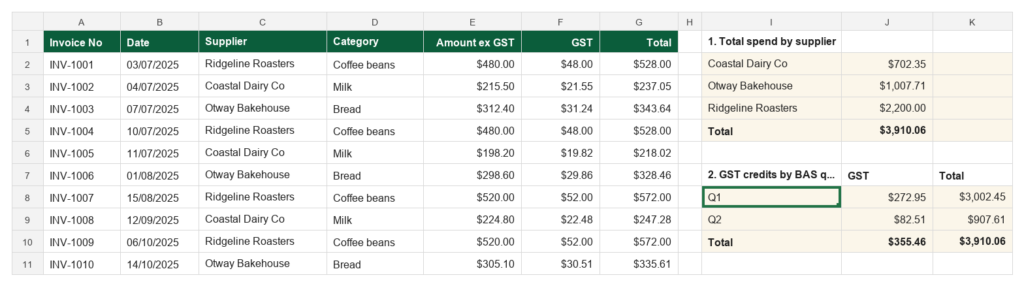
Come BAS time I want the GST I’ve paid suppliers, split by quarter of the financial year (Q1 = Jul-Sep). There’s no quarter column, so the formula builds one on the fly from the Date column (B). Click I8 and enter:
=GROUPBY("Q"&ROUNDUP((MOD(MONTH(B2:B11)-7,12)+1)/3,0), F2:G11, SUM)You get Q1: GST $272.95, Total $3,002.45 and Q2: GST $82.51, Total $907.61, with a Total row of $355.46 GST on $3,910.06. The GST column is the figure that goes in 1B GST on purchases on your BAS. The MOD part shifts July to month 1, so it works for the Aussie financial year rather than the calendar year.
Advanced: Share of spend, biggest supplier first
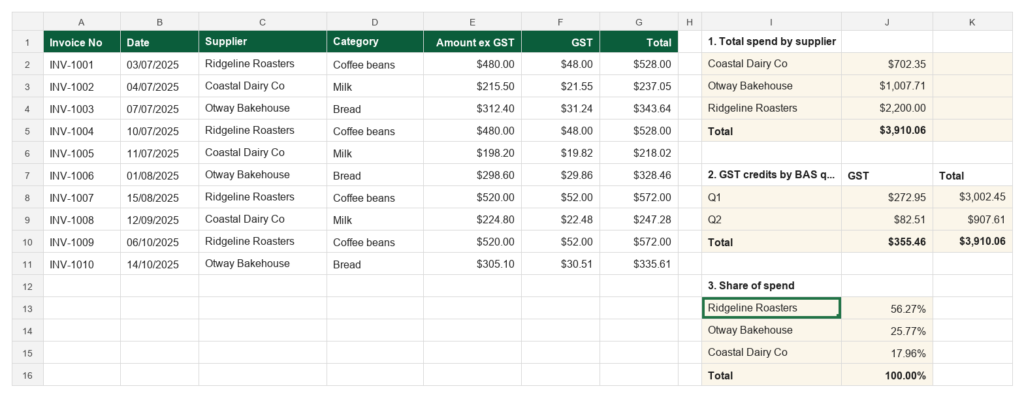
Swap SUM for PERCENTOF to see each supplier as a share of total spend, and use sort_order to put the biggest at the top. The -2 means “sort by column 2 of the result (the values), descending”. Click I13 and enter:
=GROUPBY(C2:C11, G2:G11, PERCENTOF, , , -2)Formatted with Percent Style, the result is Ridgeline Roasters 56.27%, Otway Bakehouse 25.77%, Coastal Dairy Co 17.96% and Total 100.00%. The empty commas skip field_headers and total_depth so their defaults still apply.
Guru Tip
Let GROUPBY see your headers and tell it to show them. Select from row 1 (C1:C11 and G1:G11) and set field_headers to 3: =GROUPBY(C1:C11, G1:G11, SUM, 3). If you leave it blank, Excel guesses whether row 1 is a header, and I’ve seen it guess wrong and treat the header as a supplier. Being explicit costs you two characters.
Common errors
#VALUE!: ranges are different sizes
Cause: row_fields and values (or filter_array) cover a different number of rows, e.g. C2:C11 and G2:G12. Fix: Make every range start and end on the same rows. Converting the data to an Excel Table and using structured references keeps them in step.
#SPILL!: something is in the way
Cause: The summary needs empty cells to spill into, and there is data, a merged cell or another formula in the way. Fix: Clear the cells below and to the right of the formula, or move the formula somewhere with more room. Click the error to see which cells are blocking it.
#NAME?: your Excel doesn’t have GROUPBY
Cause: The file was opened in Excel 2024 or earlier, which doesn’t include GROUPBY, or the function name is misspelt. Fix: Check the spelling, and open the file in Excel 365 or Excel for the web. For older versions, use a PivotTable or UNIQUE with SUMIFS.
Grab the template: GroupBY
Get the Bluegum Café invoices workbook with all three GROUPBY summaries built, including the BAS-quarter GST breakdown, ready to drop your own supplier bills into.