
UNIQUE Function in Excel
Quick answer
The UNIQUE function in Excel returns a list of the distinct values in a range, with every duplicate removed, and the list spills into the cells below. Reach for it when you need a live list of suppliers, menu items or dates that updates itself the moment your data changes.
=UNIQUE(array, [by_col], [exactly_once])Works in: Excel 365 (Windows and Mac), Excel 2024, Excel 2021, Excel for the web, and the Excel mobile apps. Not available in Excel 2019 or 2016. Google Sheets has UNIQUE too, with the same three arguments.
Syntax
=UNIQUE(array, [by_col], [exactly_once])| Argument | Required? | What it does |
|---|---|---|
array | Yes | The range you want the distinct values from, e.g. D2:D11. Select more than one column and UNIQUE compares whole rows. |
by_col | No | TRUE compares columns instead of rows, for data laid out across a row. Default: FALSE (compares rows). |
exactly_once | No | TRUE returns only the values that appear once and only once. Default: FALSE (returns every distinct value once). |
How UNIQUE works
UNIQUE reads down your range and keeps the first time it sees each value, in the order it first appears. Every later repeat is dropped. You type the formula in one cell and the list spills down into as many cells as it needs, then redraws itself whenever the source data changes.
Give it more than one column and it compares whole rows. =UNIQUE(C2:D11) on the Sales sheet below returns each Category and Item pair once, so Coffee and Flat white only show up a single time, however many days they sold.
The exactly_once argument flips the question. Instead of “what’s in this list?” it asks “what shows up only one time?”. Microsoft calls that the database meaning of unique. Either way, the result isn’t sorted, so wrap it in SORT when order matters.
Examples
These examples use the Sales sheet from the Bluegum Café workbook: ten lines of takings from the first three days of FY26 (1 to 3 July 2025) in A1:G11, with headers in row 1. Results go to the right of the data, from column I, so there’s room for them to spill.
| Date | Day | Category | Item | Qty | Unit Price | Total (inc GST) |
|---|---|---|---|---|---|---|
| 01/07/2025 | Tue | Coffee | Flat white | 42 | $5.20 | $218.40 |
| 01/07/2025 | Tue | Food | Banana bread | 18 | $6.50 | $117.00 |
| 01/07/2025 | Tue | Coffee | Long black | 25 | $4.80 | $120.00 |
| 02/07/2025 | Wed | Coffee | Flat white | 39 | $5.20 | $202.80 |
| 02/07/2025 | Wed | Food | Toastie | 14 | $12.00 | $168.00 |
| 02/07/2025 | Wed | Cold drinks | Iced latte | 9 | $6.20 | $55.80 |
| 03/07/2025 | Thu | Coffee | Flat white | 45 | $5.20 | $234.00 |
| 03/07/2025 | Thu | Food | Banana bread | 21 | $6.50 | $136.50 |
| 03/07/2025 | Thu | Coffee | Long black | 28 | $4.80 | $134.40 |
| 03/07/2025 | Thu | Food | Smashed avo | 11 | $17.50 | $192.50 |
Basic: List every menu item sold
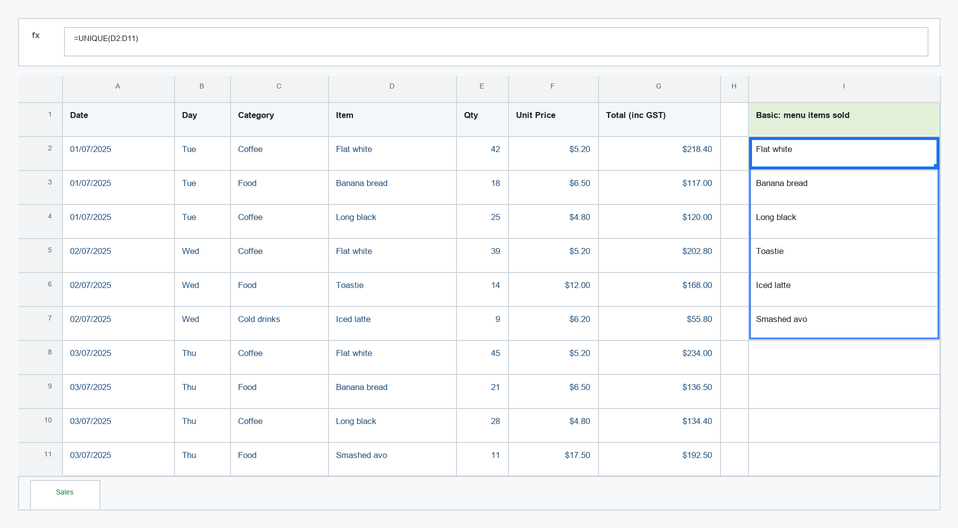
On the Sales sheet, the items are in D2:D11. Type the formula in I2.
=UNIQUE(D2:D11)The list spills into I2:I7 and returns Flat white, Banana bread, Long black, Toastie, Iced latte, Smashed avo: six items from ten rows, in the order each first appears.
Real-world: Daily takings and GST for the till reconciliation
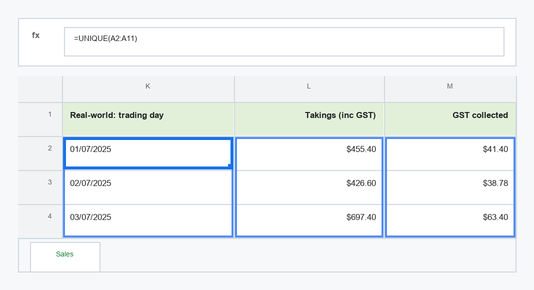
On the Sales sheet, the dates are in A2:A11 and the totals (inc GST) in G2:G11. Put the first formula in K2 and the second in L2.
=UNIQUE(A2:A11)
=SUMIFS(G2:G11, A2:A11, K2#)
K2 spills the three trading days and L2 totals each one: 01/07/2025 $455.40, 02/07/2025 $426.60 and 03/07/2025 $697.40. K2# points at the whole spilled list, so a new day gets its own total without touching the formula. For the GST collected each day, add =L2#/11 in M2 to get $41.40, $38.78 and $63.40. If K2 shows numbers like 45839, format it as a date.
Advanced: Find the items that sold on only one day
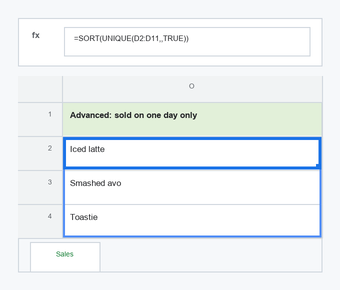
On the Sales sheet, the items are in D2:D11. Type the formula in O2.
=SORT(UNIQUE(D2:D11,,TRUE))The result is Iced latte, Smashed avo, Toastie: the items that appear exactly once across the three days, sorted A to Z. Leaving the middle argument blank keeps by_col at its default of FALSE. That’s the shortlist I’d look at before the next menu review.
Guru Tip
Don’t point UNIQUE at a range with empty cells under your data, like D2:D1000. It treats the blanks as a value and tacks a 0 onto the end of your list. I format the data as a table (Ctrl+T), name it Sales, and use =UNIQUE(Sales[Item]) instead, so the list grows with the data and never picks up blanks. If a table isn’t an option, =UNIQUE(FILTER(D2:D1000, D2:D1000<>"")) does the same job.
Common errors
#SPILL!: something is in the way
Cause: The cells the list needs to spill into aren’t empty, or the formula sits inside an Excel table, where spilled results aren’t allowed. Fix: Clear the cells below the formula, or move it outside the table to an empty area of the sheet.
#CALC!: nothing to return
Cause: With exactly_once set to TRUE, every value in the range appears more than once, so there’s no result to show. Fix: Check the range is the one you meant, or wrap it for a friendly message: =IFERROR(UNIQUE(D2:D11,,TRUE), "Nothing sold only once").
#NAME?: Excel doesn’t recognise UNIQUE
Cause: The file has been opened in Excel 2019, 2016 or earlier, which don’t have dynamic array functions. Fix: Open it in Excel 365, 2021 or later, or use Data > Remove Duplicates in the older version.
#REF!: the source workbook is closed
Cause: The array points to another workbook. Dynamic arrays between workbooks only work while both files are open. Fix: Open the source workbook, or bring the data into the same file.
Grab the template: UNIQUE
The Bluegum Café workbook with every UNIQUE example from this page already built, so you can watch the spills work and swap in your own data.