
IF Function in Excel
Quick answer
IF checks whether something is true, then returns one result if it is and another if it isn’t. Reach for it whenever a cell should show or calculate something different depending on a condition, like flagging overtime when someone on your team works more than 38 hours.
=IF(logical_test, value_if_true, [value_if_false])Works in: Every version of Excel, including Excel 365, Excel 2024, 2021, 2019, 2016 and Excel for the web, on Windows and Mac. Google Sheets has IF with the same syntax.
Syntax
=IF(logical_test, value_if_true, [value_if_false])| Argument | Required? | What it does |
|---|---|---|
logical_test | Yes | The question IF asks: anything that works out to TRUE or FALSE, e.g. E2>38. A number works too: 0 counts as FALSE and any other number as TRUE. |
value_if_true | Yes | What to return when the test is TRUE: text in double quotes, a number, a cell reference or another formula. |
value_if_false | No | What to return when the test is FALSE. Default: FALSE if you leave it out completely, or 0 if you type the comma but nothing after it. |
How IF works
IF is a fork in the road. Excel asks one yes-or-no question about your data, and the answer decides which way the formula goes. Yes, and you get value_if_true. No, and you get value_if_false.
The test is usually a comparison using =, >, <, >=, <= or <> (not equal to). Text goes in double quotes; numbers and cell references don’t. Text comparisons ignore case, so "casual" matches Casual.
When one question isn’t enough, you can put AND or OR inside the test, nest another IF inside one of the results (Excel allows up to 64), or switch to IFS in Excel 2019 and later.
Examples
All three examples use the Staff sheet from the Bluegum Café workbook, extended to eight staff for one week, with an Employment column added in column F. The data sits in A1:F9 with headers in row 1, and each example’s formula goes in row 2 of its own column (G, H or I) and is filled down to row 9.
| Staff ID | Name | Role | Hourly Rate | Hours This Week | Employment |
|---|---|---|---|---|---|
| S01 | Mia Nguyen | Barista | $28.50 | 32 | Permanent |
| S02 | Jack Thompson | Cook | $30.10 | 38 | Permanent |
| S03 | Priya Sharma | Barista | $28.50 | 41 | Permanent |
| S04 | Liam O’Brien | Kitchen hand | $26.20 | 24 | Casual |
| S05 | Chloe Martin | Front of house | $27.40 | 40 | Casual |
| S06 | Tom Walker | Cook | $30.10 | 44 | Permanent |
| S07 | Ella Davies | Barista | $28.50 | 16 | Casual |
| S08 | Noah Kelly | Manager | $34.80 | 45 | Permanent |
Basic: Flag staff who worked overtime
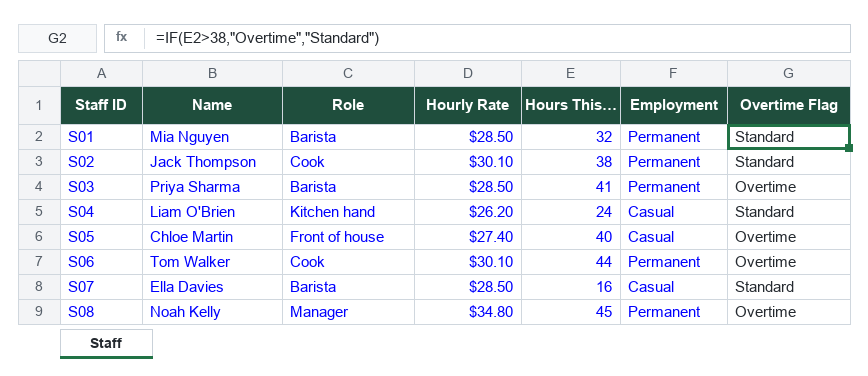
On the Staff sheet, the test reads the hours in E2 and the formula goes in G2, filled down to G9.
=IF(E2>38,"Overtime","Standard")For Priya Sharma in row 4 (41 hours), the result is Overtime. Jack Thompson in row 3 worked exactly 38 hours, so he gets Standard, because 38 isn’t greater than 38. Use >= if the boundary itself should count.
Real-world: Weekly pay with overtime at time and a half
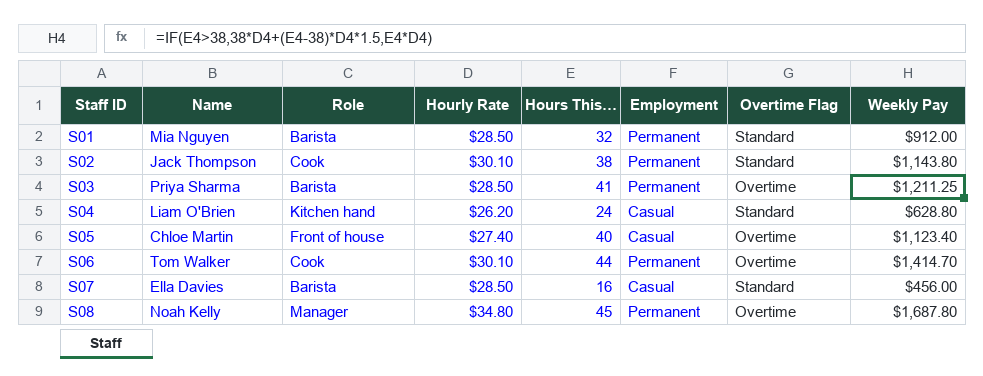
Still on the Staff sheet, using the rate in D2 and the hours in E2, the formula goes in H2 and fills down to H9. I’ve kept the rule simple here: every hour over 38 is paid at 1.5 times the base rate. Your award will have its own overtime rules, so check those before you run real payroll.
=IF(E2>38,38*D2+(E2-38)*D2*1.5,E2*D2)For Priya Sharma in row 4, the result is $1,211.25: 38 hours at $28.50 is $1,083.00, plus 3 overtime hours at $42.75 is $128.25. Mia Nguyen in row 2 worked 32 hours, so the test is FALSE and she gets 32 × $28.50 = $912.00.
Advanced: Combine IF with AND to check casual rosters
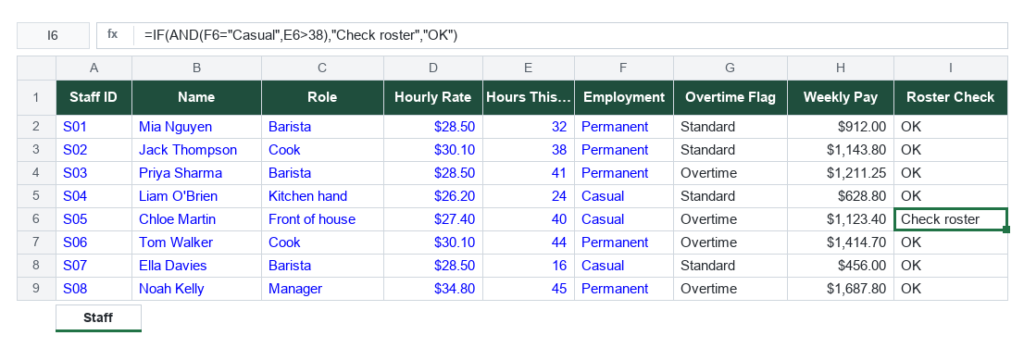
On the Staff sheet, testing the employment type in F2 and the hours in E2, the formula goes in I2 and fills down to I9. I only want a flag when a casual has gone over 38 hours, so both conditions have to be true.
=IF(AND(F2="Casual",E2>38),"Check roster","OK")Chloe Martin in row 6 is casual and worked 40 hours, so the result is Check roster. Tom Walker in row 7 worked 44 hours but he’s permanent, so AND returns FALSE and he gets OK. Swap AND for OR and a row gets flagged when either condition is true.
Guru Tip
The IF problem I see most isn’t the formula, it’s the data. Hours pasted in from a payroll export are often stored as text, and Excel treats any text as bigger than any number, so E2>38 comes back TRUE for everyone and the whole team gets flagged for overtime. Check a cell with =ISNUMBER(E2). If it says FALSE, select the column, go to Data > Text to Columns and click Finish to turn it back into numbers. It works the other way too: never put quotes around a number in the test, because E2>"38" is never TRUE.
Common errors
#NAME?: text without quotes
Cause: Text in the formula isn’t wrapped in double quotes, e.g. =IF(E2>38,Overtime,"Standard"), so Excel goes looking for a named range called Overtime. A misspelled function inside the test, like AMD instead of AND, does the same. Fix: Put double quotes around every piece of text: "Overtime".
#VALUE!: the test isn’t TRUE or FALSE
Cause: logical_test points at text Excel can’t read as TRUE or FALSE, e.g. =IF(C2,"Yes","No") where C2 holds Barista. Fix: Turn the test into a comparison: =IF(C2="Barista","Yes","No").
#DIV/0!: an error in the source data
Cause: IF passes along any error in the cells it tests. If E2 already shows #DIV/0! (or #N/A, or any other error), the IF formula returns it too. Fix: Fix the formula that feeds E2. If an error there is expected, wrap the IF in IFERROR to show something friendlier.
Grab the template: IF
Get the Bluegum Café Staff sheet with all three IF examples built in, so you can drop in your own team’s hours and rates.