
TEXTSPLIT Function in Excel
Quick answer
The TEXTSPLIT function in Excel splits text into separate cells wherever a delimiter appears, like a comma or a space. It spills the pieces across columns, down rows, or both. Reach for it when a name, an export line or a list lands in one cell and you need it in columns.
TEXTSPLIT(text, col_delimiter, [row_delimiter], [ignore_empty], [match_mode], [pad_with])Works in: Excel 365 (Windows and Mac), Excel 2024 and Excel for the web. Not available in Excel 2021, 2019 or 2016. Google Sheets doesn’t have TEXTSPLIT; use its SPLIT function instead, which splits across columns only.
Syntax
TEXTSPLIT(text, col_delimiter, [row_delimiter], [ignore_empty], [match_mode], [pad_with])| Argument | Required? | What it does |
|---|---|---|
text | Yes | The text you want to split, usually a cell reference like B2. |
col_delimiter | Yes | The character or text that marks where to split across columns, e.g. ",". You can leave it empty (TEXTSPLIT(A2,,";")) if you only want to split down rows. Use an array constant like {",",";"} for more than one delimiter. |
row_delimiter | No | The character or text that marks where to split down rows. Default: none, so everything stays on one row. |
ignore_empty | No | TRUE skips the empty cells you get from two delimiters in a row. Default: FALSE (keeps the empty cell). |
match_mode | No | 1 matches the delimiter without caring about upper or lower case. Default: 0 (case-sensitive). |
pad_with | No | What to put in gaps when rows split into different numbers of pieces. Default: #N/A. |
How TEXTSPLIT works
Think of TEXTSPLIT as Text to Columns in a formula. You tell it what to cut on, and every piece lands in its own cell. Because it’s a formula, the result updates the moment the original text changes, which Text to Columns never does.
The col_delimiter spills pieces to the right, and the row_delimiter spills them down. Give it both and a whole block of text turns into a table in one go. It’s the opposite of TEXTJOIN, which glues pieces back together.
Two things to know up front. The result is always text, even when the pieces look like numbers. And it spills, so the cells to the right (and below, if you split rows) need to be empty.
Examples
The Basic example uses the Staff sheet from the Bluegum Café workbook (Staff ID, Name, Role, Hourly Rate and Hours This Week in A1:E3). The other two use a new POS Export sheet: a till export that came through with every line jammed into column A, like this.
| Cell | Contents |
|---|---|
| A1 | Date,Item,Qty,Total |
| A2 | 01/07/2025,Flat white,42,218.40 |
| A3 | 01/07/2025,Banana bread,18,117.00 |
| A4 | 02/07/2025,Toastie,14,168.00 |
Basic: Split a full name into first and last name
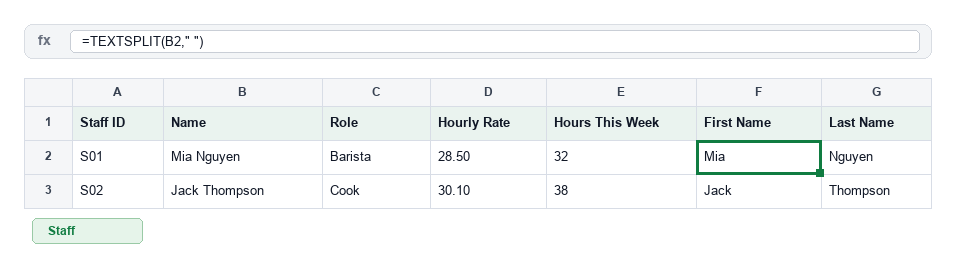
On the Staff sheet, the names are in column B. Type the formula in F2.
=TEXTSPLIT(B2," ")With Mia Nguyen in B2, the result is Mia in F2 and Nguyen in G2. Copy it down to F3 and you get Jack and Thompson.
Real-world: Split a POS export line into columns
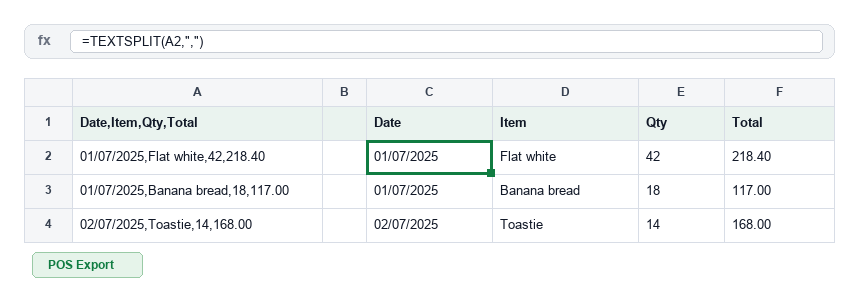
On the POS Export sheet, the first sales line is in A2. Type the formula in C2.
=TEXTSPLIT(A2,",")The line spills across C2:F2 as 01/07/2025 | Flat white | 42 | 218.40. Copy it down to C3 and C4 for the other two lines. No more running Text to Columns every time the till export comes through.
Advanced: Turn the whole export into a table with TEXTJOIN
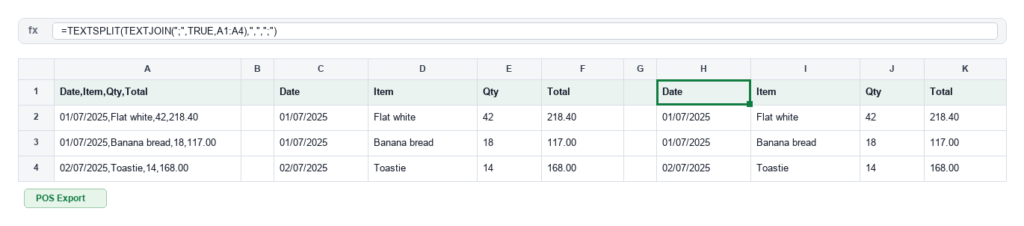
Still on the POS Export sheet, you want the whole of A1:A4, headers included, as a proper table. Type the formula in H1.
=TEXTSPLIT(TEXTJOIN(";",TRUE,A1:A4),",",";")TEXTJOIN glues the four lines into one string with a ; between them, then TEXTSPLIT cuts it back up: commas go across, semicolons go down. The result is a 4-row by 4-column table in H1:K4, with Date, Item, Qty, Total as the headers. Add a line to the export and the table grows with it.
Guru Tip
Everything TEXTSPLIT hands back is text, even the 42 and 218.40 from the till export. I’ve seen a SUM over those cells return 0 and send someone hunting for missing sales. When you split numbers only, put a double minus in front, like =--TEXTSPLIT("42,18,14",","), and they come back as real numbers you can add up.
Common errors
#SPILL!: something is in the way
Cause: TEXTSPLIT needs empty cells to the right (and below, if you split rows) and one of them has a value, even a space. Fix: Click the error, select the dashed spill area Excel outlines, and clear whatever is sitting in it, or move the formula somewhere with more room.
#N/A: gaps in a split table
Cause: When you split across and down, some rows have fewer pieces than others, and Excel fills the gaps with #N/A. Fix: Use the pad_with argument, e.g. =TEXTSPLIT(A2,",",";",,,""), to fill the gaps with blanks instead.
Grab the template: TEXTSPLIT
Get the Bluegum Café POS Export sheet with every TEXTSPLIT formula from this page already set up, so you can paste in your own export and watch it split.