
How to Sum by Category and Month in Excel (SUMIFS)
Quick answer
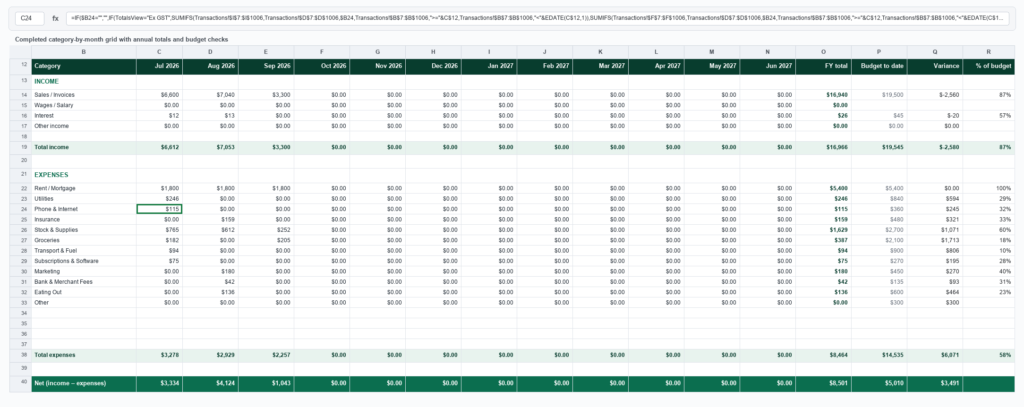
To sum by category and month in Excel, use SUMIFS with three conditions: the category, a start date and an end date. Put your categories down column A and the first day of each month across row 1, then fill one formula across the whole grid.
=SUMIFS(Invoices!$G:$G, Invoices!$D:$D, $A2, Invoices!$B:$B, ">="&B$1, Invoices!$B:$B, "<"&EDATE(B$1, 1))Works in: Excel 365, 2024, 2021, 2019, 2016 and every version back to 2007, Excel for the web, and Google Sheets (same formula).
The problem
At the Bluegum Café, every supplier bill goes into one long Invoices sheet: beans from Ridgeline Roasters, milk from Coastal Dairy Co, and so on. That’s great for record-keeping and useless for answering the question I actually care about each month: how much did we spend on each category, and is it creeping up?
I don’t want to filter and add up by hand every time. I want one summary grid that fills itself in.
Step-by-step
Step 1: Check your dates are real dates
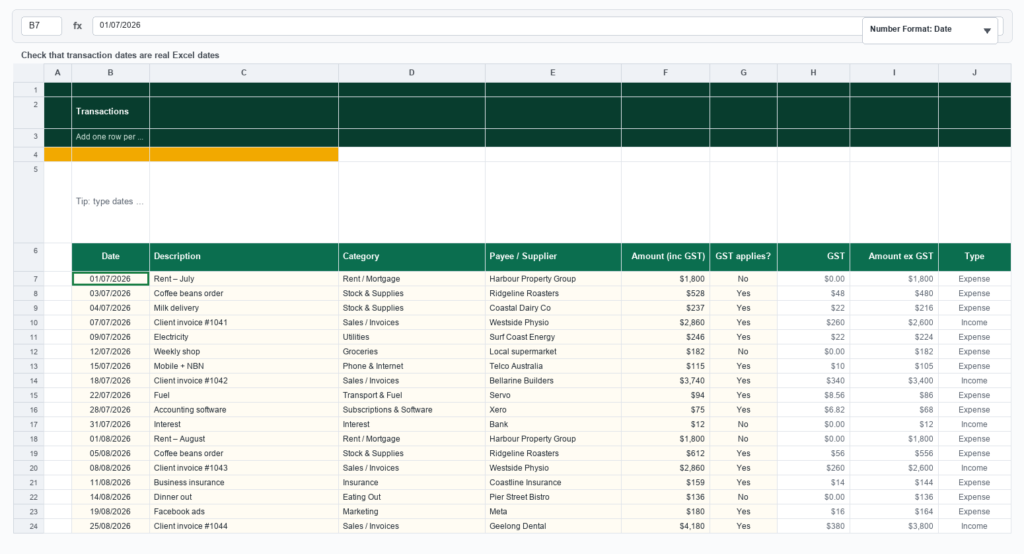
SUMIFS compares dates as numbers, so the Date column (column B on the Invoices sheet) has to hold actual Excel dates, not text that looks like a date. Click a date and switch the cell format to Number. A real date turns into a number like 45841. Text stays exactly as it was.
Real dates also sit right-aligned in the cell by default. If yours are hugging the left edge, fix that before going any further (see the Guru Tip below).
Step 2: Set up the summary grid
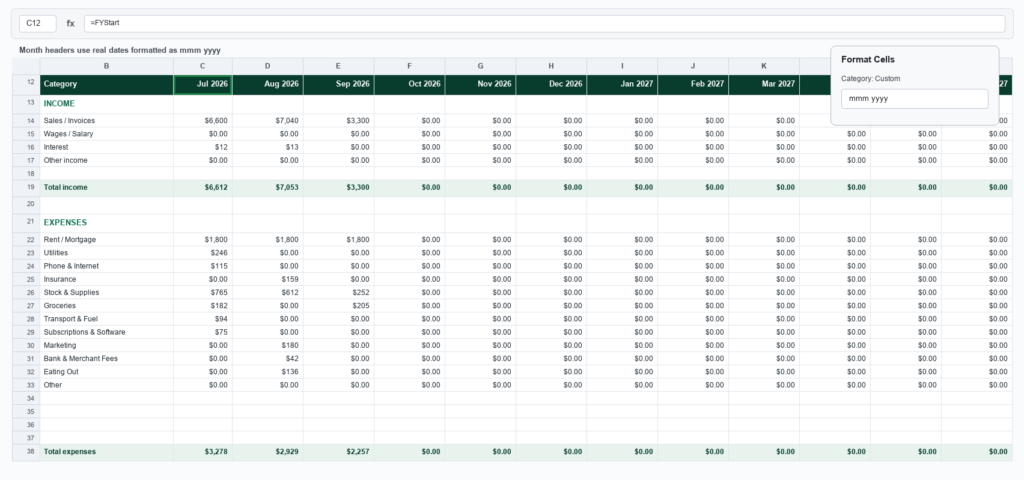
Add a new sheet called Summary. Type your categories down column A starting in A2 (Coffee beans, Milk, and the rest). Across row 1, starting in B1, enter the first day of each month: 1 Jul 2025, 1 Aug 2025, 1 Sep 2025 and so on to 1 Jun 2026 for a full twelve-month year (start from whichever month your year begins).
Those header cells need to be real dates, because the formula uses them. To make them read nicely, select B1:M1, press Ctrl+1, choose Custom and enter mmm yyyy. They’ll show as “Jul 2025” but still work as dates underneath.
Step 3: Start with one condition
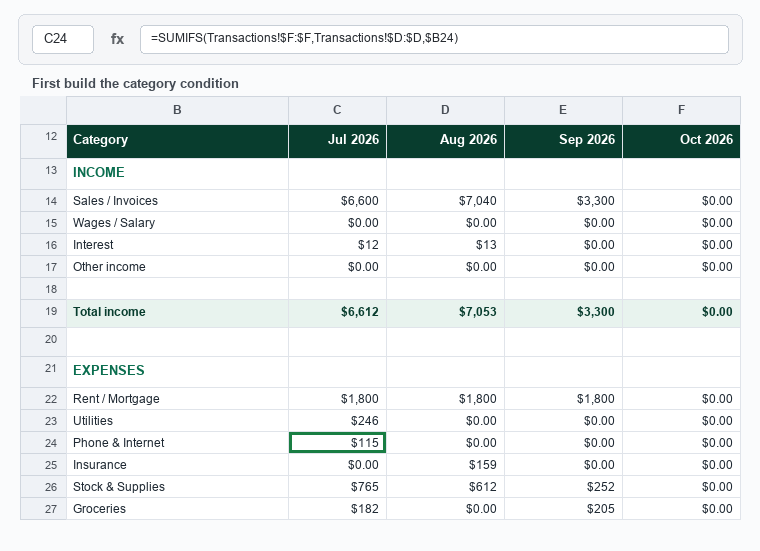
Build the formula in stages so you can check each bit. In B2, total everything for the category in A2, ignoring dates for now. SUMIFS always starts with the column you want to add up, then pairs of “where to look” and “what to match”.
=SUMIFS(Invoices!$G:$G, Invoices!$D:$D, $A2)This adds up the Total column (G) wherever the Category column (D) matches A2. You should see the all-time spend for that category.
Step 4: Add the date range
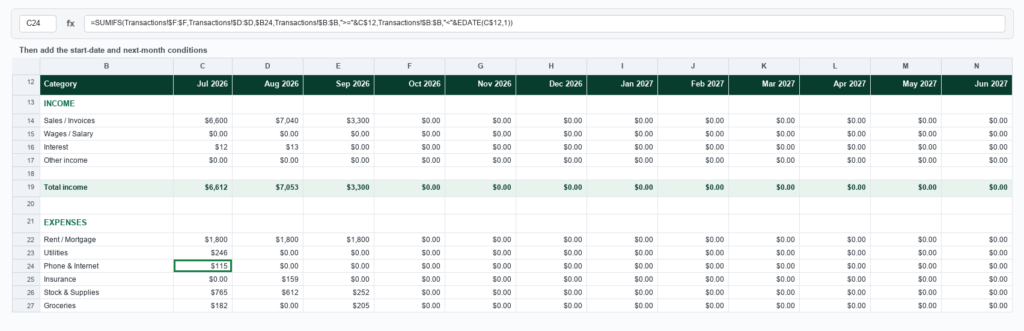
Now limit it to one month. Add two more pairs: dates on or after the month in B1, and dates before the first day of the following month. EDATE(B$1, 1) moves the date forward exactly one month, so you never have to worry about 30 versus 31 days, or February.
=SUMIFS(Invoices!$G:$G, Invoices!$D:$D, $A2, Invoices!$B:$B, ">="&B$1, Invoices!$B:$B, "<"&EDATE(B$1, 1))The comparison sign goes in quotes and gets joined to the cell with &. Writing ">=B1" inside the quotes is a common slip, and it quietly returns 0.
Step 5: Fill across and down, then check it
Drag B2 across to M2, then down to the last category. The dollar signs do the work here: $A2 keeps pointing at column A as you go across, and B$1 keeps pointing at row 1 as you go down.
Finally, sanity-check it. Add a grand total of the whole grid and compare it with =SUM(Invoices!G:G). If they don’t match, you’ve got a category that’s missing from column A, a typo in a category name, or an invoice dated outside the year.
What if your summary needs to work differently?
What if you want totals without tax?
If you can claim the tax back (GST, VAT or sales tax), the pre-tax figure is usually the real cost. Change the first argument to your pre-tax amount column: swap Invoices!$G:$G for Invoices!$E:$E. Everything else stays the same.
What if you only want one supplier?
SUMIFS takes up to 127 condition pairs, so add another one. With a supplier name in P1:
=SUMIFS(Invoices!$G:$G, Invoices!$D:$D, $A2, Invoices!$C:$C, $P$1, Invoices!$B:$B, ">="&B$1, Invoices!$B:$B, "<"&EDATE(B$1, 1))Every condition has to be true for a row to be counted.
What if you want a whole fiscal year?
Use fixed start and end dates instead of the month headers. For a year running 1 July 2025 to 30 June 2026 (change the dates to match your own year-end):
=SUMIFS(Invoices!$G:$G, Invoices!$D:$D, $A2, Invoices!$B:$B, ">="&DATE(2025,7,1), Invoices!$B:$B, "<"&DATE(2026,7,1))What if you don’t want to type the categories?
In Excel 365 or 2021, put =SORT(UNIQUE(Invoices!D2:D500)) in A2 and the list builds itself. Adjust the range to fit your data (a whole-column reference would include the header and blank cells). You’ll still need to extend the formula grid to cover any new category.
Guru Tip
When SUMIFS returns 0 and you’re sure the data is there, check the dates first. Exports from accounting and banking systems often bring dates in as text, and SUMIFS doesn’t error, it just skips them. Select the column, go to Data > Text to Columns, click Next twice, choose Date: DMY, MDY or YMD to match your data and click Finish. I’ve lost more time to this than to any formula mistake.
Grab the template: SUM by Category and Month
Skip the setup. The twelve-month summary grid, tax columns and every SUMIFS are already built, so you just paste in your transactions.